The Hack That Never Touches a Computer

When most people imagine a cyberattack, they picture a darkened room, a hooded figure, and a terminal filling with cryptic code. Hollywood has done a thorough job of building that image.

It’s also almost entirely wrong.

The most effective attacks in circulation right now don’t exploit software vulnerabilities. They exploit something far more reliable: the way humans respond to urgency, authority, and trust. Security researchers have estimated that the vast majority of successful breaches involve some form of social engineering — manipulating people rather than machines. The technical stuff often comes after someone has already been tricked into opening a door.

What social engineering actually looks like

You’ve probably seen it already, even if you didn’t have a name for it.

The WhatsApp impersonation scam is one of the most widespread examples in Latin America. Someone messages you pretending to be a family member — a cousin, a sibling, a parent — usually with a story about being in trouble and needing money urgently. The account looks real enough. The tone is stressed and rushed, which discourages you from slowing down to verify. The entire mechanism depends on one thing: getting you to act before you think.

I’ve been targeted myself. I’ve received WhatsApp messages warning me that my account would be deleted unless I shared a verification code immediately. I’ve received emails that appeared to come from my own address, written to make me believe my accounts had been compromised and that I needed to act now. They looked alarming at first glance. But the email couldn’t pass basic authentication checks — it failed the invisible ID verification that email systems use automatically to confirm a message actually came from where it claims. Once I slowed down and looked, the threat evaporated.

My non-technical relatives weren’t always so lucky. And that’s not a criticism of them. These attacks are specifically designed to bypass careful thinking by removing the time and psychological safety needed to be careful.

The anatomy of a social engineering attack

These attacks tend to follow a recognizable pattern.

First, reconnaissance. Before any contact is made, the attacker gathers information. Your name, your workplace, your family connections, your recent activity — much of this is publicly available on social media and professional profiles. The more they know, the more convincing they sound.

Then, manufactured urgency. Time pressure is the primary weapon. “Your account will be locked.” “I need the money today.” “This is your last chance.” Urgency is designed to suppress the instinct to verify. A slow, calm person is much harder to manipulate than a panicked one.

Then, impersonation of authority or familiarity. The attacker presents as someone you trust or someone you’re obligated to obey — a bank, a family member, a government agency, a company IT department. The goal is to make refusal feel uncomfortable or risky.

Finally, a small, reasonable-sounding request. Give me a code. Confirm your password. Click this link. Transfer this amount. Individually, each step can feel minor. Cumulatively, they hand over access.

What you can actually do

The single most protective habit is simple: slow down. Urgency is almost always manufactured. A real bank, a real family member, a real employer will survive a five-minute delay while you verify through a separate channel. Call the person directly. Log into the service independently rather than clicking any link provided. If something feels wrong, that feeling is data.

Beyond that, there are a few practical changes worth making.

Two-factor authentication — where you confirm a login with a second step, usually a code sent to your phone — stops the vast majority of account takeover attempts even if a password is compromised. It sounds more complicated than it is. With a bit of help from someone patient, most people are comfortable with it within a day.

A password manager is the right long-term answer for most people. It generates and stores strong, unique passwords for every account so you never have to remember them or reuse them. I’d recommend exploring this option seriously.

I’ll also say something more controversial: if using a password manager feels genuinely out of reach right now, a physical notebook kept in a safe at home — with strong, unique passwords written down — is meaningfully better than using the same password everywhere. I’m not fully convinced this is ideal, and I know security purists will disagree. But something is better than nothing. The realistic threat for most people is a remote attacker trying stolen credentials across thousands of accounts, not a burglar who also happens to know your email provider.

The non-shaming version of this conversation

These scams work on intelligent, careful people. They’ve been refined through millions of attempts to find exactly the combination of pressure and familiarity that bypasses normal judgment. Getting targeted isn’t a reflection of naivety. Getting caught is just a bad moment and a recoverable situation.

The more useful question is whether the people around you — especially the ones for whom technology already feels overwhelming — have anyone explaining this to them in plain language. Not with condescension. With patience.

That’s most of the defense, honestly. Awareness, a second channel to verify, and someone in your circle willing to help set up the basics.

Check on your non-technical relatives this week. It takes twenty minutes and it matters.

How to Create VLANs with MikroTik — The Proper Way (Bridge VLAN Filtering)

In a previous post I covered the easy way to create VLANs on MikroTik — one bridge per VLAN. It works, it’s great for learning, but it doesn’t scale well and it’s heavier on the CPU than it needs to be. If you haven’t read it, you can find it here.

This post covers the proper way: bridge VLAN filtering. One bridge, one VLAN table, everything in one place. Understanding the easy way first makes this much easier to appreciate — but you don’t need it to follow along.

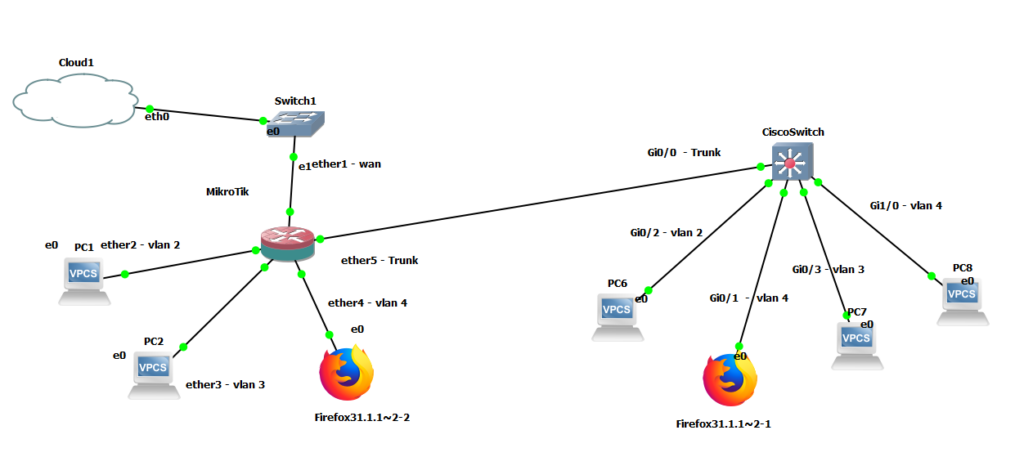
The topology is the same as in the previous post: a MikroTik router connected to a Cisco switch via a trunk port, three VLANs, devices on each VLAN getting DHCP and internet access.


How Bridge VLAN Filtering Works

Instead of creating a separate bridge for each VLAN, we create a single bridge and enable VLAN filtering on it. The bridge then maintains a VLAN table that controls which ports carry which VLANs — tagged (trunk) or untagged (access).

The key concepts:

  • Tagged ports carry traffic for multiple VLANs with 802.1Q tags. Your uplink to a switch or another router is typically tagged.
  • Untagged ports carry traffic for a single VLAN with no tag. Your end devices (PCs, printers, APs) connect to untagged ports.
  • PVID (Port VLAN ID) is the default VLAN assigned to untagged traffic arriving on a port. When a frame arrives without a tag, the bridge stamps it with the PVID before processing it.

This model maps closely to how Cisco switches think about VLANs — trunk ports and access ports — which may feel more familiar.


Step 1 — Create the Bridge

/interface bridge
add name=bridge-vlans

We create the bridge first without enabling VLAN filtering yet. We’ll turn that on after the VLAN table is fully configured — enabling it on an empty table drops all traffic immediately.


Step 2 — Add Ports to the Bridge

Add your trunk port (uplink to the switch) and your access ports (connected to end devices).

/interface bridge port
add bridge=bridge-vlans interface=ether5 pvid=1
add bridge=bridge-vlans interface=ether2 pvid=2
add bridge=bridge-vlans interface=ether3 pvid=3
add bridge=bridge-vlans interface=ether4 pvid=4
  • ether5 is the trunk port to the Cisco switch — PVID 1 is fine here since tagged traffic will override it
  • ether2, ether3, ether4 are access ports — PVID tells the bridge which VLAN to assign untagged frames arriving on each port

Step 3 — Configure the VLAN Table

This is where you define which VLANs are allowed on which ports, and whether each port carries them tagged or untagged.

/interface bridge vlan
add bridge=bridge-vlans vlan-ids=2 tagged=ether5,bridge-vlans untagged=ether2
add bridge=bridge-vlans vlan-ids=3 tagged=ether5,bridge-vlans untagged=ether3
add bridge=bridge-vlans vlan-ids=4 tagged=ether5,bridge-vlans untagged=ether4

Breaking this down:

  • VLAN 2 is carried tagged on ether5 (the trunk to the switch) and on bridge-vlans itself (so the router can route it), and untagged on ether2 (the access port for VLAN 2 devices)
  • Same pattern for VLANs 3 and 4

Step 4 — Enable VLAN Filtering

Now that the VLAN table is in place, it’s safe to enable filtering. The bridge will start enforcing the table immediately.

/interface bridge
set bridge-vlans vlan-filtering=yes

Step 5 — Create VLAN Interfaces for Routing

To route between VLANs and assign IP addresses, we need VLAN interfaces attached to the bridge.

/interface vlan
add interface=bridge-vlans name=vlan2 vlan-id=2
add interface=bridge-vlans name=vlan3 vlan-id=3
add interface=bridge-vlans name=vlan4 vlan-id=4

Step 6 — Assign IPs, DHCP, and NAT

This part is identical to the easy way — the IP addressing, DHCP, and NAT configuration doesn’t change, only the interfaces you assign them to.

/ip address
add address=10.0.2.1/24 interface=vlan2 network=10.0.2.0
add address=10.0.3.1/24 interface=vlan3 network=10.0.3.0
add address=10.0.4.1/24 interface=vlan4 network=10.0.4.0

/ip pool
add name=dhcp_pool0 ranges=10.0.2.2-10.0.2.254
add name=dhcp_pool1 ranges=10.0.3.2-10.0.3.254
add name=dhcp_pool2 ranges=10.0.4.2-10.0.4.254

/ip dhcp-server
add address-pool=dhcp_pool0 disabled=no interface=vlan2 name=dhcp1
add address-pool=dhcp_pool1 disabled=no interface=vlan3 name=dhcp2
add address-pool=dhcp_pool2 disabled=no interface=vlan4 name=dhcp3

/ip dhcp-client
add disabled=no interface=ether1

/ip dhcp-server network
add address=10.0.2.0/24 dns-server=10.0.2.1 gateway=10.0.2.1
add address=10.0.3.0/24 dns-server=10.0.3.1 gateway=10.0.3.1
add address=10.0.4.0/24 dns-server=10.0.4.1 gateway=10.0.4.1

/ip dns
set allow-remote-requests=yes

/ip firewall nat
add action=masquerade chain=srcnat

Easy Way vs. Proper Way — At a Glance

Easy WayBridge VLAN Filtering
Bridges neededOne per VLAN + one trunkOne total
Interface list sizeGrows fastClean and minimal
Adding a new VLAN3+ commands, new bridge2 commands
CPU usageHigher (software per bridge)Lower (single bridge path)
Switch chip offloadNoYes (on supported hardware)
TroubleshootingMultiple bridges to checkOne VLAN table to check
Good for learningAfter you know the basics
Good for production

A Few Things Worth Knowing

PVID must match the VLAN table. If a port’s PVID doesn’t have a corresponding untagged entry in the VLAN table, untagged frames arriving on that port will be dropped. Double-check both match — it’s the most common source of “why isn’t this device getting an IP” confusion.

The bridge itself must be tagged in the VLAN table for routing to work. That’s what the bridge-vlans entries in Step 3 are for. If you forget this, inter-VLAN routing fails silently — devices get DHCP but can’t reach other VLANs or the internet.

This configuration assumes a clean slate. If you’re adapting this to an existing bridge that already has ports and traffic, take care — enabling VLAN filtering mid-session will drop everything that isn’t covered by the VLAN table. Test in a lab or during a maintenance window.


Final Thoughts

Once you’ve done it a few times, bridge VLAN filtering is actually simpler to manage than the easy way — there’s just less of everything. The learning curve is the VLAN table concept, which takes a bit of getting used to if you’re new to it.

If Part 1 got your VLANs working and you understand why each piece is there, you’re ready for this. The configuration is a bit more deliberate, but the payoff in cleanliness and efficiency is worth it.

Why You Should Be Running a Homelab

It’s not just a hobby. It’s the best IT training program money can’t buy.


If you work in IT, or you’re thinking about getting into it, someone has probably told you to “get a homelab.” Maybe you nodded and moved on, thinking it sounded like a lot of effort for something you’d use twice. I get it. But I’m here to make the case that a homelab is one of the most valuable things you can invest in — not just for learning, but for your career, your wallet, and your daily life at home.

I’ve been running mine for years. It started small and has grown into a three-node Proxmox cluster, a full self-hosted services stack, a home NVR system, and the foundation for a serious side income. None of that happened overnight, but all of it started with the same thing: a spare machine and a willingness to break things.

And you don’t need to start big. A Lenovo mini PC or an HP EliteDesk — 8th generation or newer — can be found used for very little money. They’re compact, power-efficient, and more than capable of running a real homelab. One of those machines, set up properly, will put you on a path of professional growth that no certification alone can replicate.

Here’s why you should do the same.


You Learn by Breaking Things, Not Reading About Them

There is no certification, no course, and no amount of documentation that teaches you the way a 2am crash does.

When my backup script left a stale NFS mount that froze an entire server for 76 minutes, I learned more about how the Linux kernel handles NFS retries than I ever would have from a book. When my network card started crashing overnight and I discovered that ICMP keeps responding even during a TX queue hang — completely defeating ping-based monitoring — that’s the kind of nuance that only comes from real experience.

But it goes well beyond server crashes. Running a homelab naturally pulls you into territory you wouldn’t otherwise explore:

  • You start setting up a firewall and end up understanding stateful packet inspection, connection tracking, and why rule order matters.
  • You want remote access, so you run your own VPN server — and suddenly WireGuard, certificates, and key management aren’t abstract concepts anymore.
  • You have IoT devices you don’t fully trust, so you learn about VLANs and network segmentation to keep them isolated from the rest of your network.
  • You deploy a few services and realize you need proper DNS — and then you’re deep into split-horizon DNS, local resolvers, and why you should never rely on your ISP’s nameservers.
  • You want HTTPS on your internal services, so you learn about TLS certificates, Let’s Encrypt, DNS challenges, and wildcard certs.
  • You spend enough time in the terminal that Linux stops being intimidating — and one day you realize you’ve made the switch from Windows entirely, not because you forced it, but because it just started making more sense.

Every failure in a homelab is a controlled failure. Nothing is on fire. No customer is affected. No boss is watching. You have the freedom to dig deep, understand what actually went wrong, and fix it properly. That knowledge sticks in a way that reading never does.


It Directly Benefits Your Career

I’m not going to name my employer, but I’ll tell you this: the skills I’ve built in my homelab have made me measurably better at my job. Troubleshooting approaches, understanding how systems fail, knowing what questions to ask — all of it comes from hours spent in my own environment where I had no one to call and no escalation path.

The homelab is also where I stay sharp on technologies I don’t use daily at work. Kubernetes, Ansible, DNS architecture, reverse proxies, certificate management — I can speak to all of these because I’ve actually run them, broken them, and fixed them.

If you’re preparing for a job interview or a certification, there’s no substitute. Talking through a lab scenario you actually built is infinitely more convincing than reciting theory. Recruiters and technical interviewers can tell the difference immediately.


It Creates Real Economic Value

This one surprises people, but the skills you develop in a homelab are directly marketable — and I’ve seen it happen firsthand with people I know.

Friends of mine who run homelabs have turned that knowledge into a genuine edge when working with small businesses and SMEs. Instead of recommending expensive proprietary solutions, they can deploy cost-effective, FOSS-based infrastructure that does the same job — sometimes better — at a fraction of the cost. A proper Proxmox cluster, self-hosted DNS, a WireGuard VPN, a mail stack, a reverse proxy with proper TLS — all of this can be set up and maintained by someone with homelab experience, and smaller clients who can’t afford enterprise vendors are hungry for exactly that.

The homelab is where you build the muscle memory to do this confidently. You’ve already broken and fixed these things in your own environment. When a client’s server goes down at an inconvenient hour, you’re not googling basic commands — you’ve been there before.

It also flattens the playing field. A freelancer or small IT consultancy with deep FOSS knowledge and homelab-built skills can compete with providers that charge ten times as much, simply by doing more with less. That’s a real business advantage, and it starts at home.


You Take Back Control of Your Data

Every service you self-host is a service you’re no longer depending on someone else to run, someone else’s servers to store your data on, and someone else’s pricing to change on you.

I run my own media server, my own photo library, my own document storage, my own password manager, my own DNS with ad-blocking, my own NVR for home cameras. None of these depend on a subscription. None of them will disappear because a company decided to shut down or pivot. None of them are sending my family’s data to a third party.

That’s not paranoia — it’s just a reasonable preference for owning the things you use every day.


Home Automation Gets Genuinely Useful

A homelab gives you the infrastructure to run Home Assistant properly — not the dumbed-down cloud version, but a real local instance with full control. When you combine that with the rest of your stack, things get interesting.

My Home Assistant is aware of everything on my network. It manages my UPS systems, monitors my servers, sends me alerts when something goes offline, and can automatically restart services when they misbehave. When my NVR node was crashing, Home Assistant detected the ping loss and cut and restored power via a smart plug to bring it back — automatically, at 3am, without me touching anything.

But what makes Home Assistant particularly powerful is that it speaks the language of virtually every smart home vendor out there. Zigbee devices, Z-Wave, MQTT, Tuya, Google, Apple, IKEA, Sonoff, Shelly — it doesn’t matter who made it, Home Assistant can integrate it. That means you’re not locked into a single ecosystem, you’re not dependent on any vendor’s cloud staying alive, and you can mix and match whatever hardware makes sense for your budget.

The automation side has real, measurable impact too. Lights that turn off when no one is in the room, climate control that adjusts based on presence, appliances that only run during off-peak hours — these aren’t just conveniences, they add up to meaningful savings on your electricity bill over time. You build them yourself, you understand exactly how they work, and you can tune them to your household’s actual patterns rather than relying on whatever a vendor’s app decides is “smart.”

And like everything else in the homelab, Home Assistant is a marketable skill. Small businesses, restaurants, offices — anyone with smart devices and no IT support has a problem you can solve. Setting up and managing a local Home Assistant instance, integrating their existing hardware, building automations that actually work reliably — that’s a service people will pay for, and it’s something you learn by running it at home first.

That’s not magic. It’s what happens when you have a proper homelab and take the time to connect the pieces.


The Cost Is Lower Than You Think

You do not need a server rack and enterprise hardware to start. The most useful nodes in my homelab are HP mini PCs that cost under $100 used. They’re compact, quiet, energy-efficient, and more than capable of running a handful of VMs or containers.

The honest costs are: hardware (low, buy used), electricity (low, small machines sip power), and time (the real investment). The time pays back in skills, income potential, and services you’d otherwise be paying subscriptions for.

Start with one machine. Install Proxmox or just plain Debian. Run one service. Break it. Fix it. Add another. That’s the entire playbook.


Where to Start

If you’re new to this, the barrier is lower than ever:

  • Proxmox VE is free, installs on almost any x86 machine, and gives you a full hypervisor with a web UI. It’s where most serious homelabs begin.
  • Old mini PCs (HP EliteDesk, Dell OptiPlex, Lenovo ThinkCentre) are ideal starter hardware — small, cheap, low power.
  • Self-hosted services worth starting with: a DNS filter for ad-blocking, a reverse proxy for clean HTTPS access to your services, a self-hosted password manager, and a file sync solution.
  • The community around homelabs is genuinely helpful — Reddit’s r/homelab and r/selfhosted are full of people at every level. YouTube is also an incredible resource: channels like Christian Lempa, Techno Tim, DBTech, and Craft Computing cover everything from beginner setups to advanced configurations, all with real demos and honest explanations.
  • AI as your co-pilot — this is something I didn’t have when I started, and it changes the game completely. Before deploying anything, you can describe your idea to your AI of choice, walk through the architecture, catch the gotchas before they bite you, and get a second opinion on your approach. You’re not starting alone anymore. You can go from “I want to do X” to a working plan in minutes, then learn deeply as you actually build it.

The most important thing is to start. Don’t wait until you have the perfect hardware or the perfect plan. Stand something up, see what breaks, and go from there. The learning is in the doing.


The Honest Part

A homelab is not always fun. There are nights where something breaks at the wrong time, a service goes down that your household depends on, or a fix you were sure would work makes things worse. That’s part of it.

But those moments are also exactly why the homelab works as a learning environment. You’re motivated to fix it because you built it and you care about it. That motivation is the engine behind everything else.

I used to be a gamer. I still play occasionally — maybe five times a year — and I have nothing against it. But somewhere along the way I found that homelabing is more satisfying and enjoyable, honestly. There’s something about having fun while actually learning that hits differently. Every problem you solve, every service you deploy, every crash you diagnose and fix — it’s leveling up in real life. You’re not accumulating points in a game world, you’re accumulating skills and knowledge that carry over into everything you do professionally. That feeling is genuinely hard to replicate.

And then something interesting happens: you start sharing your services with friends and family. You give someone access to your media server, or set up your parents with a VPN, or share your media library with a relative. Without realizing it, you’ve become their service provider.

If what you provide is good, they’ll rely on it. And if they rely on it, they’ll complain when it breaks. That’s not a bad thing — it’s actually one of the best things that can happen to you. Suddenly you’re dealing with real users, real expectations, and real consequences for downtime. You start thinking about reliability, about backups, about graceful failure. You start solving problems that mirror exactly what happens in a professional environment, but in a context where the stakes are manageable and you have full control.

That combination — low stakes, real consequences, full ownership — is what makes a homelab irreplaceable as a learning environment. If you’ve been on the fence, consider this your push. Start small, break things, learn from it, and build something that’s genuinely yours.

Come to think about it, it is kind of fun.


The author runs a three-node Proxmox homelab in Panama, self-hosts most of his daily services, and has been building and breaking things at home for years.

Frigate NVR on an HP EliteDesk G3 Mini with an i5-6500: Crashes, Workarounds, and an Unexpected Fix

How migrating from Linux Mint to headless Proxmox accidentally solved a problem I thought was unsolvable


If you run Frigate NVR on older Intel hardware, you may have noticed that “working” and “stable” are two very different things. This is the story of how an HP EliteDesk Mini G3 with an i5-6500 (Skylake) went from crashing multiple times a day to running for days without incident — and why I can’t fully explain why.


The Setup

The goal was simple: a dedicated, low-power NVR box for Frigate with five cameras, hardware-accelerated decoding via Intel VAAPI, and the OpenVINO detector for object detection. The hardware was an HP EliteDesk Mini G3 — compact, fanless, sips power. The original OS was Linux Mint, kept around from a previous life as a desktop machine.

Frigate ran in a Docker container directly on Linux Mint — no virtualization layer, just Docker on a desktop OS. VAAPI worked. Detection worked. The preview timeline ribbon worked. Everything looked fine — until the crashes started.


The Problem: i915 Instability Under Load

The Skylake iGPU (Intel HD 530) has a known relationship with the i915 kernel driver that ranges from “fine” to “spectacular failure” depending on workload, kernel version, and what feels like the phase of the moon.

Under sustained VAAPI decode load — which is exactly what Frigate does, continuously, for every camera stream — the i915 driver on Skylake is prone to GPU hangs. The symptoms look like this in the kernel log:

i915 0000:00:02.0: [drm] GPU HANG: ecode 9:1:85dffffb
i915 0000:00:02.0: [drm] Resetting chip for stopped heartbeat on rcs0

After a hang, the driver attempts a GPU reset. Sometimes it recovers. Often it doesn’t — and when it doesn’t, Frigate loses its decoder, Docker becomes unresponsive, and eventually the entire node needs a reboot.

At its worst, the box was crashing every few hours. Uptime above 12 hours was rare.


Living With It: The Workarounds on Linux Mint

With the crashes confirmed as an i915 problem under sustained VAAPI load, the options on Linux Mint were limited.

Reducing detection frames: Lowering the number of frames Frigate passed to the GPU for detection (down to 2) helped reduce the frequency of hangs. It didn’t eliminate them, but it bought more time between crashes. This setting was carried over to the Proxmox setup and is still in place today. Not a fix — just turning down the pressure on a leaking pipe.

The HA watchdog: The real mitigation was a Home Assistant automation. Since the entire node would become unresponsive — not just Frigate — I set up a ping monitor in Home Assistant that continuously checked whether the box was reachable. When it stopped responding, an automation would cut power via a smart plug and turn it back on. The box would reboot, Frigate would come back up, and the cameras would be live again within a few minutes.

But here’s the part that made this setup genuinely frustrating: opening the Frigate web UI to actually watch the cameras would trigger a crash after a few minutes. When you open the live view, Frigate starts encoding additional frames to serve the stream — that extra GPU encode load was enough to push the i915 driver over the edge. The system that was supposed to let me monitor my home would reliably crash within minutes of me trying to use it for exactly that purpose. The watchdog would kick in, the box would reboot, and I’d be back to square one.

That’s not a workaround. That’s a system that works only when nobody is looking at it.


The Unexpected Fix: Remove the Desktop

The original setup was Linux Mint installed on an SSD, with Frigate recording to an external USB hard drive. It worked, but it was a general-purpose desktop OS running a 24/7 surveillance workload — with a display manager, compositor, and GUI login screen all sitting idle, consuming resources and sharing the i915 driver with Frigate.

The real reason to move to Proxmox was operational: cluster membership for centralized management and backups. The plan was always to wipe Linux Mint and install headless Proxmox regardless of whether it helped Frigate. The stability improvement was not the goal — it was a side effect.

After the migration:

  • Linux Mint replaced with bare Proxmox 9, no desktop environment, installed on the NVMe
  • Frigate moved from Docker-on-Mint into a privileged LXC (Debian 13 minimal), with Docker still running inside it
  • LXC root disk on the SSD, /dev/dri/renderD128 passed through for VAAPI
  • External HDD mounted on the Proxmox host, path bind-mounted into the LXC for recordings
  • Same Frigate config, same cameras, same OpenVINO detector
  • HA watchdog kept in place as a safety net

Uptime went from under 12 hours to multiple days. Then a week. As far as I can tell, the watchdog hasn’t fired once since.


Why Did It Work? (I’m Not Sure)

Here’s where I have to be honest: I can’t definitively explain the improvement. A few theories:

The compositor theory. Linux Mint’s desktop compositor (Muffin) was actively using the iGPU for display rendering, even with no monitor connected. Removing it likely gave the i915 driver a much quieter workload outside of Frigate’s decode jobs — and the GPU does seem to be working noticeably less hard now. Less driver state to manage, fewer context switches, less contention. This feels like the most plausible explanation, but it’s still a guess.

There’s also circumstantial evidence that supports it: while Frigate was running on Linux Mint, the desktop itself became basically unusable — sluggish, unstable, barely responsive. The box was supposed to be headless at that point anyway, but the fact that the whole desktop environment degraded under Frigate’s load suggests the GPU was genuinely being overworked — pulled in two directions at once.

The kernel theory. Linux Mint ships a recent upstream kernel. Proxmox ships a more conservatively patched kernel tuned for server workloads. It’s possible the Proxmox kernel has better i915 scheduling or fewer regressions on Skylake specifically.

The “just less stuff running” theory. A minimal headless Proxmox install has dramatically less userspace touching the GPU than a full desktop OS. Fewer background processes, no screensaver, no hardware acceleration in a browser nobody’s using.

The “it was always going to be fine, I just didn’t know” theory. Maybe the instability was already improving and the timing was coincidental.

I genuinely don’t know which of these is the real answer — or whether it’s all of them together.

In hindsight, maybe I should have known better than to provision Frigate on a desktop OS in the first place. And maybe I should have anticipated that something as GPU-heavy as continuous VAAPI decode across five camera streams wasn’t a great fit for hardware that was already doing double duty as a daily driver. But I love Linux Mint — it’s still my daily driver on my main machine — and at the time it was the path of least resistance. Sometimes you learn the hard way.


Current State

The box has been running stable since the migration. The HA watchdog is still configured because there’s no reason to remove it, but as far as I can tell it hasn’t fired once since the migration.

Frigate performs exactly as it did before: VAAPI hardware decode for all five streams, OpenVINO for object detection, the preview timeline ribbon intact. The user experience is unchanged. The operational experience is dramatically better.


What I’d Love to Know

If you’ve run Frigate (or any VAAPI workload) on Skylake hardware and have dug deeper into the i915 instability, I’d genuinely like to hear what you found. Specifically:

  • Did removing a desktop environment make a difference in your case?
  • Have you found specific kernel parameters or i915 module options that improve stability under sustained decode load?
  • Is there a known-good kernel version for Skylake + VAAPI that I should be pinned to?

The crash is gone for now. But “gone” and “understood” aren’t the same thing — and the next person to hit this problem deserves a better answer than “try running it headless and see what happens.”


Hardware: HP EliteDesk Mini G3, Intel i5-6500 (Skylake), Intel HD 530. Running Proxmox VE 9 with a privileged Debian 13 LXC, Frigate via Docker, VAAPI via /dev/dri/renderD128 passthrough.

Building a Proxmox Home Cluster Without Shared Storage, HA, or Quorum Worries

A practical guide to clustering heterogeneous homelab nodes the right way


If you’ve been running multiple Proxmox nodes as independent standalone hosts and decided to bring them together into a single cluster, you probably hit the same wall I did: most of the clustering documentation assumes you have enterprise-grade shared storage, fencing devices, and a dedicated cluster network. In a homelab, you have none of that — and if you proceed naively, you end up with a cluster that’s more fragile than your original standalone setup.

This post documents the challenges I faced when clustering three heterogeneous nodes and how I solved each one.


The Setup

Three nodes, all running Proxmox VE 9, each with its own local storage:

  • A lightweight mini PC running 24/7, designated as cluster master
  • A heavier compute node with more RAM and storage, used for demanding workloads
  • A third mini PC running a specific NVR workload

None of the nodes share a storage pool. Each has its own NVMe SSDs, HDDs, and LVM-thin pools. No SAN, no Ceph, no NFS for VM disk storage — just local disks.

The goal was simple: a single Proxmox UI to manage everything, with each node remaining fully independent and capable of booting its VMs regardless of whether the other nodes were reachable.


Challenge 1: Hostname and DNS Consistency

Before even thinking about pvecm create, Proxmox requires that all nodes can resolve each other by FQDN. Corosync and the cluster filesystem (pmxcfs) depend on it.

In my case, two nodes had their search domain set to local.homelab.net while the third was still on the old homelab.net. The result: hostname --fqdn returned different domains across nodes, which would cause cluster communication issues down the line.

The fix: Standardize all nodes to the same search domain before touching anything cluster-related. On Proxmox, don’t edit /etc/resolv.conf directly — it can be overwritten. Use the PVE API instead:

pvesh set /nodes/<nodename>/dns --search local.homelab.net

Verify with:

hostname --fqdn

All three nodes should return <nodename>.local.homelab.net before proceeding.


Challenge 2: The Quorum Problem for Standalone Nodes

This is the big one, and it catches most homelab admins off guard.

Proxmox clusters use Corosync for node heartbeating and quorum to determine cluster health. The default behavior: if a node loses quorum (can’t reach enough peers), Proxmox freezes VM operations on that node. It won’t start VMs, it won’t stop them gracefully — everything just hangs.

Quorum fencing exists for a good reason in enterprise environments: if two nodes can both write to the same shared disk simultaneously, you get catastrophic data corruption. Quorum prevents this by shutting down the “minority” side.

But here’s the thing — if you have no shared storage, there is no shared disk to corrupt. Each node only touches its own local disks. Quorum fencing in this scenario provides zero protection and causes real pain: if your cluster master goes offline for maintenance, your other two nodes refuse to start VMs until it comes back.

The fix: Set no_quorum_policy: ignore in Corosync configuration. This tells the cluster to keep running VM operations even when quorum is lost.

After creating the cluster, edit /etc/pve/corosync.conf and add it to the quorum section:

quorum {
  provider: corosync_votequorum
  expected_votes: 3
  no_quorum_policy: ignore
}

With this in place, each node operates independently even if its peers are unreachable. You get the unified management UI when everything is up, and you get resilience when things are down.


Challenge 3: Ghost Disks — The Silent Disaster

When nodes join a cluster, Proxmox replicates storage.cfg cluster-wide. This means every node suddenly “sees” the storage pools defined on all other nodes — including local LVM-thin pools that physically only exist on one machine.

The result: a node will happily display another node’s local storage as “available,” and if you accidentally provision a VM disk there, it will fail silently or corrupt. Even worse, Proxmox’s UI won’t clearly warn you that you’re trying to use storage that doesn’t exist locally.

This is the ghost disk problem.

The fix: Use the nodes= directive in storage.cfg to restrict each storage pool to only the node it physically lives on.

Example storage.cfg:

lvmthin: fast-nvme
    thinpool fast-nvme
    vgname fast-nvme
    content rootdir,images
    nodes node1

lvmthin: secondary-ssd
    thinpool secondary-ssd
    vgname secondary-ssd
    content rootdir,images
    nodes node2

lvmthin: nvr-storage
    thinpool nvr-storage
    vgname nvr-storage
    content rootdir,images
    nodes node3

The nodes= line means that storage only appears in the UI when you’re looking at the correct node. No cross-contamination, no ghost disks.

Important: storage.cfg is cluster-wide and lives in /etc/pve/. Any node can modify it, but changes replicate everywhere. Edit it once after all nodes have joined — not before, because a node join overwrites the local storage.cfg with the master’s copy.


Challenge 4: VMs Vanish From the UI After Joining

Storage was fixed, the cluster was up, all three nodes were showing green. Then I noticed something alarming: the VMs and containers on two of the three nodes had completely disappeared from the Proxmox web UI — not stopped, not errored, just gone. No entries at all under those nodes.

To be clear about what “disappeared” means here: the VMs were still running. Every service was reachable, every SSH session connected, every workload humming along normally. The problem was purely at the management layer — Proxmox itself had lost track that those VMs existed. You couldn’t start, stop, snapshot, or manage them through the UI or API. They were invisible to the cluster, but alive on the metal.

What happened: When a standalone node joins a cluster, Proxmox transitions its local filesystem to pmxcfs — the distributed cluster filesystem. As part of this transition, VM and container configuration files need to be migrated from the old standalone path into the new cluster-aware path at /etc/pve/nodes/<nodename>/qemu-server/. In my case, that migration silently failed on two of the three nodes. The config files weren’t in the old path, weren’t in the new path — they were nowhere on the live filesystem.

Checking both locations confirmed the worst:

ls /etc/pve/nodes/<nodename>/qemu-server/   # empty
ls /etc/pve/qemu-server/                    # empty

Where the configs actually were: Before completing the join, Proxmox automatically creates a compressed SQLite backup of the node’s cluster database at /var/lib/pve-cluster/backup/. The configs were in there — they just never made it out into the live filesystem.

The recovery process: extract the backup into a temporary SQLite database, query it for the config files, and write them directly into the correct cluster path.

# Load the backup into a temporary database
zcat /var/lib/pve-cluster/backup/config-<timestamp>.sql.gz | sqlite3 /tmp/node-restore.db

# Inspect the schema — it uses 'name', not 'path'
sqlite3 /tmp/node-restore.db "SELECT name FROM tree WHERE name LIKE '%.conf';"

# Restore each VM config to its correct cluster path
for vmid in 100 102 103 105; do
  sqlite3 /tmp/node-restore.db \
    "SELECT data FROM tree WHERE name='${vmid}.conf';" \
    > /etc/pve/nodes/<nodename>/qemu-server/${vmid}.conf
done

# For LXC containers, the path differs
for ctid in 300 301; do
  sqlite3 /tmp/node-restore.db \
    "SELECT data FROM tree WHERE name='${ctid}.conf';" \
    > /etc/pve/nodes/<nodename>/lxc/${ctid}.conf
done

After writing the configs, the VMs reappeared in the UI immediately — no restart required. pmxcfs picks up new files in real time.

The lesson: If VMs disappear from the UI after a node joins the cluster, don’t panic and don’t touch the running workloads. The data and the disks are fine. The configs are almost certainly in the SQLite backup. Check /var/lib/pve-cluster/backup/ first.


Challenge 5: Why I Deliberately Skipped HA

Proxmox’s High Availability feature is prominently visible in the UI, and it’s tempting to think “I have a cluster now, I should enable HA on my important VMs.” Resist this.

HA in Proxmox works by detecting that a node has gone offline and automatically restarting its VMs on a surviving node. This requires two things that a local-storage homelab doesn’t have: shared storage (so the surviving node can actually access the VM’s disk) and a fencing mechanism (a way to guarantee the original node is truly dead before another node starts the same VM, preventing two nodes from writing to the same disk simultaneously).

Without both of these, enabling HA causes more problems than it solves. If a node goes offline, the cluster will repeatedly attempt to migrate and restart the VM on another node — and repeatedly fail, because the disk isn’t there. The cluster enters a retry loop, the VM ends up in an undefined state, and you’re left untangling it manually.

The deliberate choice here is to simply not use HA at all. The cluster serves a different purpose in this setup: unified management, a single web UI, and consolidated monitoring. Each node is responsible for its own VMs. If a node goes down, its VMs go down with it — intentionally and cleanly, with no cluster intervention. That’s fine for a homelab. You know where your VMs live, you know how to bring them back, and you don’t need the cluster to second-guess you.


The Order of Operations

Getting the sequence right matters. Here’s what worked:

  1. Fix hostnames and DNS on all nodes first
  2. Back up each node’s storage.cfg before touching anything
  3. Rename/fix any storage pools that have naming conflicts between nodes
  4. Create the cluster on the master node (pvecm create)
  5. Immediately set no_quorum_policy: ignore in corosync.conf
  6. Join remaining nodes one at a time (pvecm add --force)
  7. After all nodes have joined, edit storage.cfg once to add nodes= restrictions to every local storage pool
  8. Verify in the UI that each node only shows its own storage
  9. If VMs are missing from the UI, recover configs from /var/lib/pve-cluster/backup/ — don’t touch the running workloads

End Result

After working through all of this, the outcome is exactly what a homelab cluster should be: a single pane of glass for managing all your nodes, with each one remaining fully autonomous. Any node can go down for maintenance, upgrades, or power savings without affecting the others. The UI shows everything in one place when nodes are reachable, and gracefully marks them offline when they’re not.

No shared storage required. No HA complexity. No quorum anxiety.

If your homelab nodes are heterogeneous machines with local-only storage, this approach is the right one — just make sure you address the gotchas before you start, not after.


Running Proxmox VE 9.x across all nodes. Commands and behavior may vary slightly on older versions.

Mikrotik DNS failover script, for Pi-Hole

MikroTik DNS Failover Script for Pi-Hole

If you have a Pi-hole configured on your home lab and you’re anything like me, there’ll be occasions in which you’ll be tinkering with your Pi-hole and affecting your home network.

But this shouldn’t be the case. You can configure your MikroTik so it automatically takes over DNS resolution upon Pi-hole failure — seamlessly, with zero manual intervention, and with a Telegram notification so you know exactly what happened and when.


How It Works

The setup relies on a MikroTik Netwatch rule that monitors a secondary IP on the Pi-hole VM. When that IP stops responding, MikroTik assumes the DNS service is down and activates a fallback — by enabling a dormant IP address directly on the router that answers DNS queries itself. When the Pi-hole comes back, the process reverses.

Here’s the full flow:

Normal state (Pi-hole up):

  • Pi-hole VM has two interfaces: one serving DNS (10.1.1.10) and one dedicated to monitoring (10.1.100.2) with no gateway, on a separate VLAN only the MikroTik can reach
  • MikroTik’s Netwatch pings the monitoring IP (10.1.100.2) at regular intervals
  • Two IP addresses are configured on the MikroTik but kept disabled: 10.1.1.10/24 and 10.1.100.2/24
  • MikroTik forwards DNS to the Pi-hole at 10.1.1.10

Failover state (Pi-hole down):

  • Netwatch detects the monitoring IP is unreachable
  • MikroTik enables its own 10.1.1.10 and 10.1.100.2 addresses, effectively impersonating the Pi-hole on the network
  • MikroTik clears the ARP entries for both IPs so clients pick up the new owner immediately
  • MikroTik switches its DNS server to AdGuard’s public DNS (94.140.14.14, 94.140.15.15) — which still blocks ads and trackers, keeping the experience close to normal even during failover
  • A Telegram notification fires

Recovery (Pi-hole back up):

  • Netwatch detects the monitoring IP is reachable again
  • MikroTik disables its own 10.1.1.10 and 10.1.100.2 addresses
  • ARP entries are cleared again so clients reconnect to the real Pi-hole
  • MikroTik switches DNS back to 10.1.1.10
  • Another Telegram notification fires

The reason for the separate monitoring interface is important: you don’t want Netwatch pinging the DNS IP itself (10.1.1.10), because MikroTik would be impersonating that IP during failover — which would make Netwatch think the Pi-hole is back up when it isn’t. The monitoring IP on its own isolated VLAN can only be answered by the real VM, never by the MikroTik fallback.


Prerequisites

  • MikroTik router with RouterOS
  • Pi-hole running on a VM with two network interfaces
  • A Telegram bot token and chat ID for notifications
  • The monitoring VLAN must be routable from the MikroTik but not from other devices

MikroTik Configuration

Step 1 — Add the fallback IP addresses (disabled by default)

These are the addresses MikroTik will enable during failover. Replace the interface name with your actual LAN bridge or interface.

/ip address
add address=10.1.1.10/24 interface=bridge-home disabled=yes
add address=10.1.100.2/24 interface=bridge-mgmt disabled=yes

Step 2 — Configure Netwatch

Netwatch monitors the Pi-hole’s dedicated monitoring IP. Adjust the interval and timeout to your preference.

/tool netwatch
add host=10.1.100.2 interval=30s timeout=5s \
    up-script=dns-up \
    down-script=dns-down \
    comment="Pi-hole DNS monitor"

Step 3 — The down script (Pi-hole unreachable)

/system script
add name=dns-down source={
:global telegramMessage "DNS Server not detected, backup DNS enabled"
:log error "$telegramMessage"
/ip dns set servers=94.140.14.14,94.140.15.15
/ip address enable [find address="10.1.1.10/24"]
/ip address enable [find address="10.1.100.2/24"]
/ip arp remove [find address=10.1.1.10]
/ip arp remove [find address=10.1.100.2]
/tool fetch url="https://api.telegram.org/bot<YOUR_TOKEN>/sendMessage?chat_id=<YOUR_CHAT_ID>&text=$telegramMessage" keep-result=no
}

Step 4 — The up script (Pi-hole restored)

/system script
add name=dns-up source={
:global telegramMessage "DNS Server detected, DNS Service Restored"
:log warning "$telegramMessage"
/ip dns set servers=10.1.1.10
/ip address disable [find address="10.1.1.10/24"]
/ip address disable [find address="10.1.100.2/24"]
/ip arp remove [find address=10.1.1.10]
/ip arp remove [find address=10.1.100.2]
/tool fetch url="https://api.telegram.org/bot<YOUR_TOKEN>/sendMessage?chat_id=<YOUR_CHAT_ID>&text=$telegramMessage" keep-result=no
}

Replace <YOUR_TOKEN> with your Telegram bot token and <YOUR_CHAT_ID> with your chat ID.


Why Clear the ARP Table?

This is the detail that makes the whole thing work cleanly. When MikroTik enables a new IP address, clients on the network may still have the old ARP entry cached — pointing to the Pi-hole’s MAC address. By clearing the ARP entries for both IPs immediately after the switch, you force clients to re-resolve, and they’ll get the MikroTik’s MAC address instead. Without this step, clients could experience a gap in DNS resolution even after the failover has technically completed.

The same logic applies on recovery — you clear the ARP entries so clients stop pointing at the MikroTik and pick up the Pi-hole again.


Result

With this in place, a Pi-hole restart, a VM crash, or any maintenance you do on the DNS server will cause a seamless failover in under 30 seconds (or whatever interval you set). Your network keeps resolving DNS, your devices never notice, and you get a Telegram message telling you exactly what happened.

When you bring the Pi-hole back up, everything switches back automatically — including your ad-blocking and local DNS records — again without touching anything manually.


Tested on RouterOS 7.x. The Netwatch tool and script engine behave consistently across recent RouterOS versions, but always test in your own environment before relying on it in production.

Simple & Basic Home Firewall with Mikrotik

One of the most common mistakes I’ve seen from technicians setting up MikroTik routers is leaving the firewall completely empty. The assumption seems to be that a strong password is enough protection. It isn’t. A password protects your router’s management interface — it does nothing to stop malicious traffic from flowing through it, scanning your network, or exploiting services running behind it. A firewall is not optional. It’s the foundation.

This post walks you through a simple but solid home firewall ruleset for MikroTik. It’s designed to be approachable — you don’t need to be a network engineer to follow it — but it covers the right bases and explains the reasoning behind each decision.

A few things to keep in mind before we start:

  • This assumes your firewall is currently empty. If it isn’t, read through the rules carefully and apply what makes sense for your setup.
  • I group rules by purpose rather than by chain. I find this easier to reason about, especially when troubleshooting.
  • MikroTik processes firewall rules in sequential order — the position of each rule matters.
  • I’m using ether1-wan as the WAN interface and bridge.home as the LAN bridge throughout. Adjust these to match your actual interface names.
  • This post does not cover NAT configuration — that deserves its own post.

The Ruleset

1. Accept established and related traffic

/ip firewall filter
add action=accept chain=input comment="Accept established & related inputs" \
    connection-state=established,related
add action=accept chain=forward connection-state=established,related

These go first and they’re critical for performance. Once a connection is established, there’s no need to re-evaluate every subsequent packet against the full ruleset. Accepting established and related traffic early means the router only does the heavy lifting once per connection, not once per packet. Skip these and your CPU will suffer for it.


2. Drop invalid packets

add action=drop chain=input comment="Drop invalid inputs & forwards" \
    connection-state=invalid
add action=drop chain=forward connection-state=invalid

Invalid packets are those that don’t belong to any known connection and don’t make sense as the start of a new one — malformed headers, out-of-sequence packets, and similar garbage. There’s no legitimate reason to accept them. Drop them early.


3. Reject blacklisted sources

add action=reject chain=input comment="Reject blacklisted" in-interface=\
    ether1-wan reject-with=icmp-network-unreachable src-address-list=\
    Blacklist

This rule rejects any traffic from IPs that have been added to a Blacklist address list. The list itself gets populated later by the blacklisting rules — this rule just enforces it. The order matters: this needs to come before any accept rules so blacklisted IPs get stopped regardless of what they’re trying to do.


4. Drop unsolicited inbound forwards

add action=drop chain=forward comment="Drop all from WAN not DSTNATed" \
    connection-nat-state=!dstnat connection-state=new in-interface=ether1-wan

This rule blocks any new inbound connection from the WAN that hasn’t been explicitly port-forwarded via DNAT. Without this, your router would happily forward unsolicited traffic from the internet toward your internal devices. Unless you’ve set up a DNAT rule for a specific service, nothing from the outside should be initiating connections to your network.


5. Accept traffic from a whitelist (optional)

add action=accept chain=input comment="Accept inputs from the whitelist" \
    in-interface=ether1-wan src-address-list=Whitelist

This is optional. It allows specific trusted external IPs to reach the router directly — useful if you manage the router remotely from a known static IP. Use it carefully. If you don’t have a stable public IP or aren’t sure you need it, skip it. A WireGuard VPN is a much better way to manage your router remotely.


6. Log and track access attempts on the Winbox port

add action=add-src-to-address-list address-list="Unknown Admin" \
    address-list-timeout=1w chain=input comment="Log unknown admins" \
    dst-port=8291 in-interface=ether1-wan log=yes log-prefix="Unknown Admin" \
    protocol=tcp src-address=0.0.0.0/0
add action=accept chain=input comment="Accept unknown admins" dst-port=8291 \
    in-interface=ether1-wan protocol=tcp src-address=0.0.0.0/0

Port 8291 is the default Winbox port. If you’re keeping it accessible from the WAN — and I’d strongly recommend against it — these rules at least log who’s trying to connect so you can see it happening.

More importantly: change this port. Leaving it at 8291 means every automated scanner on the internet knows exactly where to knock. Moving it to a non-standard port won’t make you invisible, but it will dramatically reduce the noise. You can change it in WinBox under IP → Services → Winbox.

Better yet, block it from the WAN entirely and only access your router from your local network or over a VPN.


7. Accept traffic from your LAN

add action=accept chain=input comment="Accept inputs from home" in-interface=\
    bridge.home src-address=192.168.88.0/24
add action=accept chain=forward comment=\
    "Accept internet access for home devices" in-interface=home-bridge \
    out-interface=ether1-wan src-address=192.168.88.0/24

These rules allow your local devices to reach the router and access the internet. Adjust the subnet and interface names to match your LAN configuration.


8. Blacklist port scanners

add action=add-src-to-address-list address-list=Blacklist \
    address-list-timeout=1w chain=input comment=\
    "Add forbidden attempts to the blacklist" dst-port=\
    21-23,25,53,80,110,135,139,443,445,587,1025,1352 in-interface=ether1-wan \
    protocol=tcp src-address=0.0.0.0/0 src-address-list=!Whitelist
add action=add-src-to-address-list address-list=Blacklist \
    address-list-timeout=1w chain=input dst-port=\
    1433,1521,3306,3389,5060,5900,6001,8000-8080 in-interface=\
    ether1-wan protocol=tcp src-address=0.0.0.0/0 src-address-list=!Whitelist
add action=add-src-to-address-list address-list=Blacklist \
    address-list-timeout=1w chain=input dst-port=\
    53,69,161,135-139,445,593,1433-1434,1900 in-interface=ether1-wan \
    protocol=udp src-address=0.0.0.0/0 src-address-list=!Whitelist

Any external IP that probes these ports gets added to the Blacklist for one week. These ports cover the most commonly abused attack vectors: FTP, SSH, Telnet, SMTP, DNS, NetBIOS, SMB, RDP, SIP, VNC, SQL Server, MySQL, SNMP, and UPnP among others.

The logic is simple: if you’re not deliberately exposing any of these services to the internet, there is no legitimate reason for an outside IP to be probing them. Anyone who does is either scanning opportunistically or targeting you specifically — either way, they go on the list. Rule 3 then blocks them from that point forward for the entire week.


9. Drop everything else

add action=reject chain=input comment="Drop all from WAN" in-interface=\
    ether1-wan reject-with=icmp-network-unreachable
add action=reject chain=forward comment="Drop everything else" reject-with=\
    icmp-network-unreachable

These are your catch-all rules. Anything from the WAN that hasn’t been explicitly accepted by a previous rule gets dropped here. Never skip these — without them, unmatched traffic falls through to RouterOS defaults, which is not a firewall policy you want to rely on.


Complete Rule Order at a Glance

#ChainActionPurpose
1input / forwardAcceptEstablished & related traffic
2input / forwardDropInvalid packets
3inputRejectBlacklisted sources
4forwardDropUnsolicited WAN inbound
5inputAcceptWhitelisted sources (optional)
6inputLog + AcceptWinbox port tracking
7input / forwardAcceptLAN traffic
8inputAdd to listBlacklist port scanners
9input / forwardRejectEverything else

Final Thoughts

This ruleset won’t make your router impenetrable, but it will make it vastly more resilient than an empty firewall with just a password on it — which, again, is a setup I see far more often than I should.

Start with these rules, watch your logs, and watch your blacklist populate. You’ll quickly get a sense of what’s being thrown at your network from the outside every single day. It’s eye-opening, and it makes a strong case for never leaving a MikroTik without a proper firewall again.

Replacing ZFS pools with boot partitions (In Proxmox)

I’ve created this document in order to have a clear guide to replace boot disks in a ZFS pool for proxmox, basically because the one on their documentation was not completely clear for me.

Source documentation: https://pve.proxmox.com/wiki/ZFS_on_Linux

In my case I was dealing with a Raid1 ZFS pool, both with bootable drives.

I wasn’t aware these drives had 3 partitions, which I had to replicate to the new drive in order to perform the proper replacement.

We replicate these partitions with the following commands:

sgdisk <healthy bootable device> -R <new device>    -  (use /dev/diskname)

sgdisk -G <new device>  - (use /dev/diskname)

The the second command will make sure the new partitions that have been copied from the remaining surviving drive, have unique GUIDs, it’s a bad idea to have disks with cloned GUIDs.

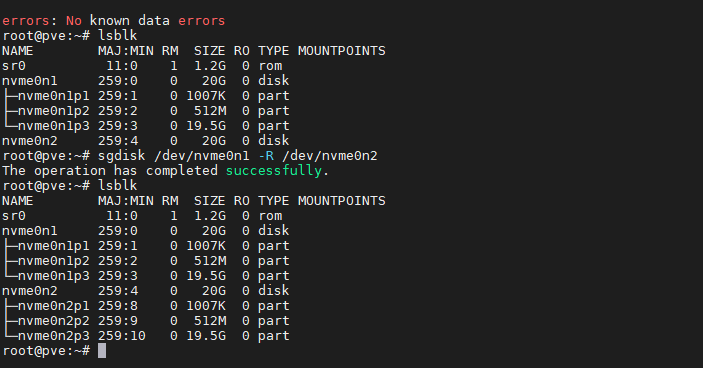
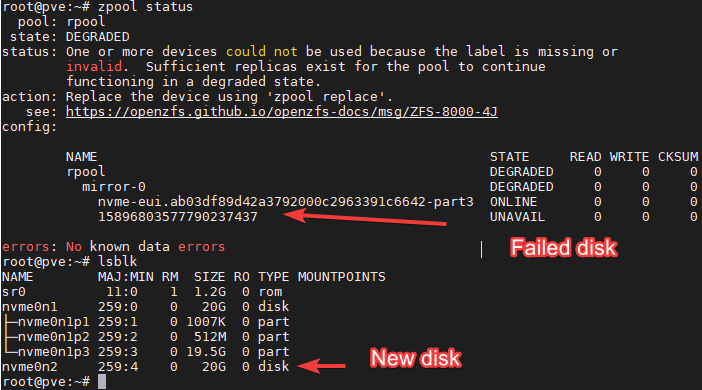
In the example above we see that Nvme0n1 is the remaining disk in the array, which is in good state.

Nvme0n2 is the new one, the one we are going to used to replace the failed one.

Knowing this we run the following commands:

sgdisk /dev/nvme0n1 -R /dev/nvme0n2

sgdisk -G /dev/nvme0n2

The last command should output: The operation has completed successfully.

After, we should see the partitions replicated:

Now, we need to add the partition 3 to the ZFS pool array. Previously I made the mistake of adding the complete disk, which would destroy the partitions created and will not let you install the boot partition into the disk.

Avoid that mistake, what we need to add is the disk to the array, not the complete disk.

Lets move now to identify the partition ID we want to replicate:

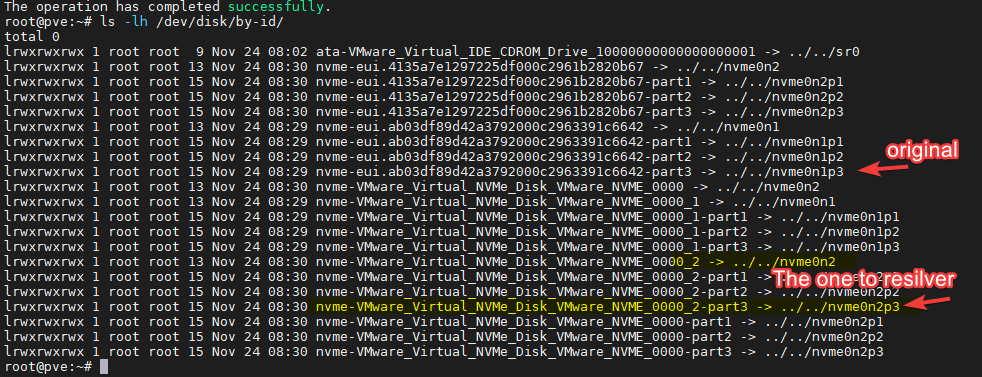
ls -lh /dev/disk/by-id/

We know the new disk is the nvme0n2, and we know the partition is nvme0n2p3, so the ID we’ll use now its:

nvme-VMware_Virtual_NVMe_Disk_VMware_NVME_0000_2-part3

The command we need to now follow its:

# zpool replace -f <pool> <failed disk id> <new zfs partition>

From the first image in the document, we know the failed partition has this ID: 15896803577790237437

The resulting command should be:

zpool replace -f rpool 15896803577790237437 nvme-VMware_Virtual_NVMe_Disk_VMware_NVME_0000_2-part3

Do NOT do it like this:

zpool replace -f rpool 15896803577790237437 /dev/nvme0n2p3

The zpool replace command will start a resilvering process, which you should monitor until its 100% complete before moving forward.

We can monitor this process with the command:

watch zpool status -v

Once this process is completed, you can move on to install the boot files in the p2 partition for the drive

First we need to validate if we are using UEFI or GRUB with the following command:

proxmox-boot-tool status

You need to validate if the system says you are booting with legacy bios or UEFI.

# proxmox-boot-tool format <new disk's ESP>

In the example we are using, we know the boot partition should be /dev/nvme0n2p2, so following the example above the next command should be:

proxmox-boot-tool format /dev/nvme0n2p2

# proxmox-boot-tool init <new disk's ESP>  [grub] (optional)

After formatting the partition, we proceed to install the boot files, if we are using grub the command should be:

proxmox-boot-tool init /dev/nvme0n2p2 [grub]

If we are using UEFI, the command should be:

proxmox-boot-tool init /dev/nvme0n2p2

Then we proceed to clean the previous boot entries that are no longer relevant with the following command:

proxmox-boot-tool clean

You can now proceed to validate if the boot partitions have been correctly installed with the following commands:

proxmox-boot-tool status

cat /etc/kernel/proxmox-boot-uuids

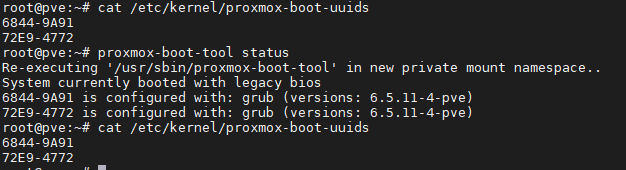
The output should look similar to this (Legacy Bios example)

Since this is a raid1 pool with 2 disk, we should only see two lines per output.

You should now be able to boot from both drives!

How to Create VLANs with MikroTik — The Easy Way

When you start working with MikroTik, VLANs can feel intimidating — especially if you’re coming from a Cisco background where the mental model is different. I’ve been there.

This post covers what I call the easy way: one bridge per VLAN. It’s not the most efficient method, and I wouldn’t recommend it for a production environment with many VLANs, but for a home lab or a small home network it works perfectly well and it’s straightforward to understand and troubleshoot. If you just want VLANs working without diving deep into MikroTik’s bridge VLAN filtering engine, this is your starting point.

A few things to keep in mind before we begin:

  • I’m demonstrating this in GNS3 with a MikroTik router connected to a Cisco switch, but the commands work the same on real hardware.
  • There’s no firewall or security configured in this lab — don’t apply this blindly to a production device without adding those first.
  • I’m assuming you have a basic familiarity with the MikroTik CLI and can relate the commands to the Winbox GUI.
  • We start from a clean slate with only a DHCP client on ether1.

The Lab Topology

In this scenario we have a MikroTik router connected to a Cisco switch via a trunk port. Three VLANs are configured, and devices on each VLAN can reach the internet and talk to each other through the router.


Why one bridge per VLAN?

MikroTik’s more advanced VLAN method uses a single bridge with VLAN filtering enabled — cleaner, more scalable, and better for CPU. The method in this post creates a separate bridge for each VLAN instead, which is simpler to visualize and configure but doesn’t scale well beyond a handful of VLANs. For a home lab with 3-4 VLANs, the difference is negligible.


Step 1 — Create the Trunk Bridge

Instead of attaching VLANs directly to a physical interface, I prefer to create a bridge for the trunk port. This gives you flexibility to add more trunk ports later without restructuring everything.

/interface bridge
add name=bridge-trunk

/interface bridge port
add bridge=bridge-trunk interface=ether5

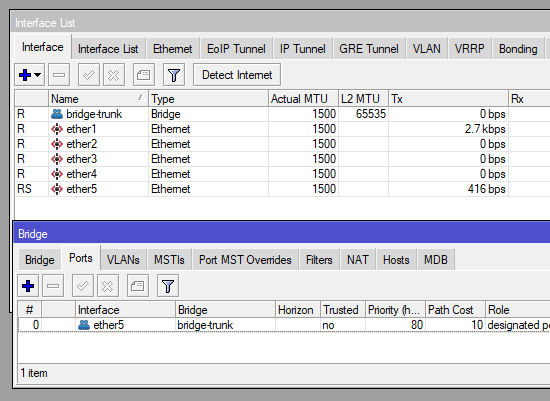
Here ether5 is the interface connected to the Cisco switch trunk port. After running this you should see the bridge and its port in Winbox: <img


Step 2 — Create the VLANs on the Trunk Bridge

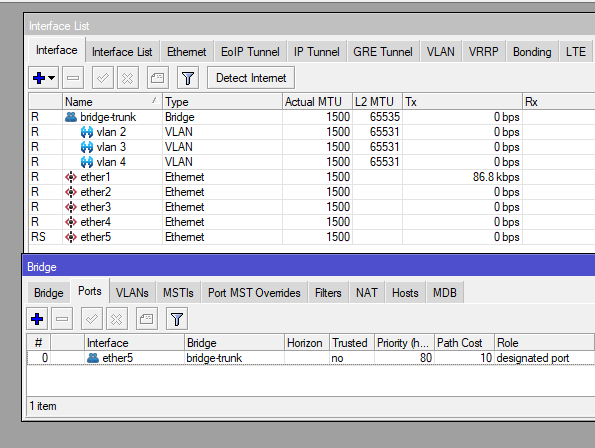
Now we create the VLAN interfaces and attach them to bridge-trunk. This tells MikroTik to expect tagged traffic for these VLAN IDs on that bridge.

/interface vlan
add interface=bridge-trunk name="vlan-2" vlan-id=2
add interface=bridge-trunk name="vlan-3" vlan-id=3
add interface=bridge-trunk name="vlan-4" vlan-id=4


Step 3 — Create a Bridge for Each VLAN

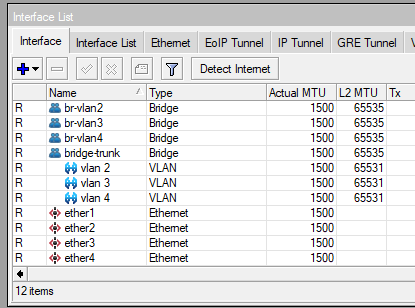
This is the “clunky” part. Each VLAN gets its own bridge. This bridge is what you’ll later attach access ports and IP addresses to.

/interface bridge
add name=br-vlan2
add name=br-vlan3
add name=br-vlan4


Step 4 — Attach VLAN Interfaces and Access Ports to Each Bridge

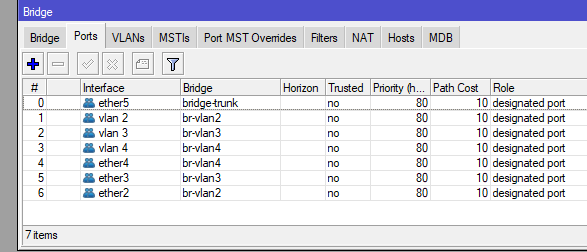
Now we tie everything together. Each VLAN interface goes into its corresponding bridge, and the access ports (the physical interfaces your end devices connect to) go into their respective bridges as well.

/interface bridge port
add bridge=br-vlan2 interface="vlan-2"
add bridge=br-vlan3 interface="vlan-3"
add bridge=br-vlan4 interface="vlan-4"
add bridge=br-vlan4 interface=ether4
add bridge=br-vlan3 interface=ether3
add bridge=br-vlan2 interface=ether2

At this point the trunk and access ports are working at Layer 2. Devices on the same VLAN can reach each other. To get IP addressing, DHCP, and internet access working we need a few more steps.


Step 5 — Assign IPs, Configure DHCP, and Set Up NAT

Each VLAN bridge gets an IP address (this becomes the default gateway for devices on that VLAN), a DHCP pool, and a DHCP server. We also configure NAT so all VLANs can reach the internet.

/ip address
add address=10.0.2.1/24 interface=br-vlan2 network=10.0.2.0
add address=10.0.3.1/24 interface=br-vlan3 network=10.0.3.0
add address=10.0.4.1/24 interface=br-vlan4 network=10.0.4.0

/ip pool
add name=dhcp_pool0 ranges=10.0.2.2-10.0.2.254
add name=dhcp_pool1 ranges=10.0.3.2-10.0.3.254
add name=dhcp_pool2 ranges=10.0.4.2-10.0.4.254

/ip dhcp-server
add address-pool=dhcp_pool0 disabled=no interface=br-vlan2 name=dhcp1
add address-pool=dhcp_pool1 disabled=no interface=br-vlan3 name=dhcp2
add address-pool=dhcp_pool2 disabled=no interface=br-vlan4 name=dhcp3

/ip dhcp-client
add disabled=no interface=ether1

/ip dhcp-server network
add address=10.0.2.0/24 dns-server=10.0.2.1 gateway=10.0.2.1
add address=10.0.3.0/24 dns-server=10.0.3.1 gateway=10.0.3.1
add address=10.0.4.0/24 dns-server=10.0.4.1 gateway=10.0.4.1

/ip dns
set allow-remote-requests=yes

/ip firewall nat
add action=masquerade chain=srcnat

Result

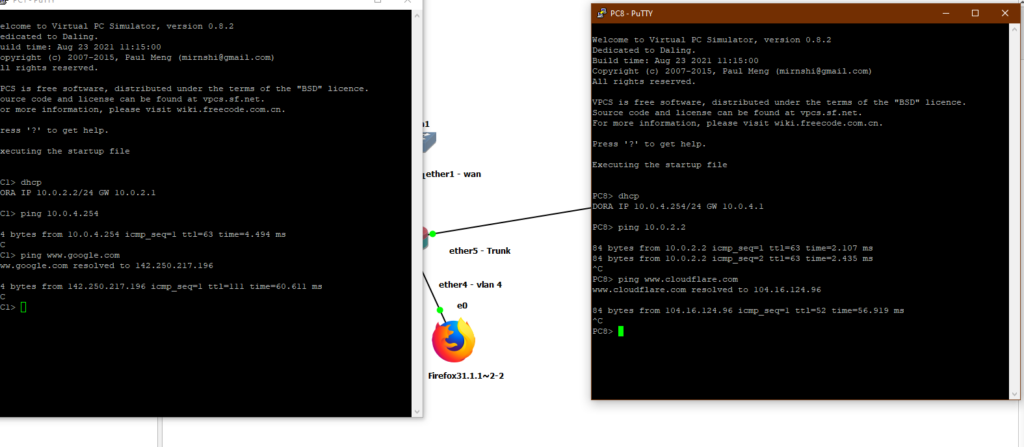
With everything in place, devices on different VLANs can communicate through the router and reach the internet — as shown here with PC1 and PC8 on opposite ends of the topology on different VLANs:


Config Files

If you want to study the full configuration or follow along in your own lab, here are the config files used in this post:

If you’d like the GNS3 lab file, send me an email and I’ll share it.


When to Use This Method — And When to Move On

If you’ve never configured VLANs before, or you’ve never done it on MikroTik specifically, this is a great way to get your feet wet. The structure is visible and tangible — you can see every bridge, every VLAN interface, every port assignment in Winbox. That transparency makes it easier to understand what’s actually happening at each layer, which is valuable when you’re learning.

That said, you should make an effort to learn the proper way once this clicks. Here’s why:

Performance. The easy way does all VLAN tagging and untagging in software on the CPU. Every packet that crosses a VLAN boundary goes through RouterOS’s bridge code. On a busy network or a router handling many VLANs, this adds up. The proper method — bridge VLAN filtering — is more efficient because there’s only one bridge in the kernel’s forwarding path instead of one per VLAN. On hardware with a built-in switch chip it can offload VLAN handling entirely to hardware, barely touching the CPU at all.

Management. The easy way grows linearly and messily. Five VLANs means five extra bridges, five VLAN interfaces, and five sets of bridge port assignments on top of your trunk bridge. Your interface list becomes a wall of entries and finding things in Winbox gets tedious. With bridge VLAN filtering, everything lives in one bridge. The VLAN table is a single clean list, and adding a new VLAN is a one-liner instead of three commands and a new bridge.

Troubleshooting. When something breaks with the easy way, you’re tracing traffic across multiple bridges. With a single bridge there’s one place to look — the bridge VLAN table and its port assignments.

The honest caveat: for a home lab with three or four VLANs and normal traffic levels, the performance difference is genuinely invisible. The management argument is the stronger one — this approach just gets unwieldy as you grow. Start here if you need to, but treat it as a stepping stone rather than a destination.

How to control the lights of your Xiaomi Gateway 3 with OpenLumi.

This is a guide on how to set up a Xiaomi Gateway 3 flashed with OpenLumi for you to control its LED lights through Home Assistant.

First things first, props to the people who allowed me to do it, I’ve originally followed these two guides written in Russian to do it myself:

If you get stuck, you may want to check them out for reference.

Before moving forward, you need to have configured MQTT on your Home Assistant, if you haven’t done that, please follow one of these guides to set it up first:

Also, I’m assuming that you already have some experience with Home Assistance and know how to work on the Linux terminal, I’m also assuming you’ve already flashed your Xiaomi Gateway with OpenLumi. If you haven’t, please look at my previous posts.

Now, you need to have installed some packages first, so open the terminal of your Gateway and install these packages:

opkg update && opkg install node git-http mpg123 mpc mpd-full

Now you need to install Lumi:

mkdir /opt
cd /opt
git clone https://github.com/Beetle-II/lumi.git
cd lumi
cp config_example.json config.json

Now we’ll use “vi” to edit the config.json file:

{
  "sensor_debounce_period": 300,
  "sensor_treshhold": 50,
  "button_click_duration": 300,
          
  "homeassistant": true,
  "tts_cache": true,
  "sound_channel": "Master",
  "sound_volume": 50,
  "mqtt_url": "mqtt://[HA IP ADDRESS HERE]",
  "mqtt_topic": "lumi", #Use the name of your gateway
  "use_mac_in_mqtt_topic": true, 
  "mqtt_options": {
    "port": 1883,
    "username": "login here",
    "password": "password here",
    "keepalive": 60,
    "reconnectPeriod": 1000,
    "clean": true,
    "encoding": "utf8",
    "will": {
      "topic": "lumi/state",
      "payload": "offline",
      "qos": 1,
      "retain": true
    }
  }
}

I highly advise you to use the “true” value on the “use_mac_in_mqtt_topic”, if by any chance you have more than one gateway, this will help you differentiate all of them on your Home Assistant.

Also, make sure to change all “lumi” values with the desired name of your Gateway, it will help you differentiate the devices on your home assistance in case you have more than one.

After configuring the config.json file, we will need to start our service, so we launch on the terminal:

node /opt/lumi/lumi.js

That might result in an error, so after getting feedback from your gateway, use control+c or control+z to exit.

After that, we type on the terminal:

cd /opt/lumi
chmod +x lumi
cp lumi /etc/init.d/lumi
/etc/init.d/lumi enable
/etc/init.d/lumi start

Then type again:

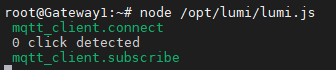
node /opt/lumi/lumi.js

If you see something like this:

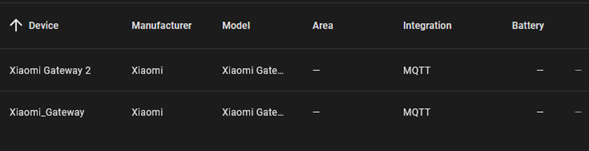
It means you have set it up correctly and it’s now done, you should be able to see your device on your Home Assistant Integrations section, here is how mine looks:

In my case, I have two gateways configured, if you have only one you should see half as much.

That’s it! Happy setups!